
How to Safely Switch Instagram DM Automation Tools: Move from ManyChat or SuperProfile to Zaprep, the Secure, Meta-Friendly Way
Switch from ManyChat or SuperProfile to Zaprep for secure, Meta-friendly Instagram DM automation. Automate comment replies, keyword-triggered DMs, and Instagram engagement using the official Meta Graph API—without bots or scraping.
Welcome to Zaprep! 🎉 Looking for a ManyChat alternative or SuperProfile alternative? Moving your Instagram DM automation and comment to DM automation to a new auto DM tool is a great way to give your social media automation a fresh start. Zaprep is your all-in-one social automation tool, built to turn comments, stories, and conversations into real customers.
Because your social account is your business, we made this guide to keep your switch smooth, simple, and aligned with Meta's platform guidelines. Your followers, chats, and content stay exactly where they are. You're simply choosing a new tool to power your growth, and following the steps below helps keep your account healthy and reduces the risk of restrictions or bans.
Why a safe setup matters when you switch Instagram automation tools
Meta lets you decide which connected app manages your conversations. When your previous tool is disconnected and Zaprep is set up as your main tool:
- ✅ Every customer gets one clear, timely reply
- ✅ Your automations trigger reliably
- ✅ Your account follows Meta's recommended messaging setup
- ✅ You stay in full control of which apps can access your account
- ✅ You lower the risk of account restrictions, action blocks, or bans by keeping your setup clean and compliant
Before you start Your Instagram login Your Facebook login, the account that manages the Page linked to your Instagram An Instagram Professional account (Business or Creator) connected to a Facebook Page A desktop browser for Part 2, which makes it quicker
Part 1
Tidy up your Instagram connections A clean start makes everything easier. Let's disconnect your previous tool so Zaprep can take the lead.
1. Open Instagram Settings Open Instagram on your desktop browser, click More (bottom left), then click Settings.
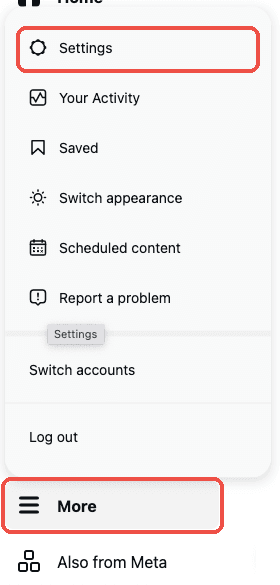
Click More, then Settings.
2. Open App website permissions In the Settings menu, scroll down to Your app and media and click App website permissions. (On the mobile app: Settings → Website permissions → Apps and websites.)
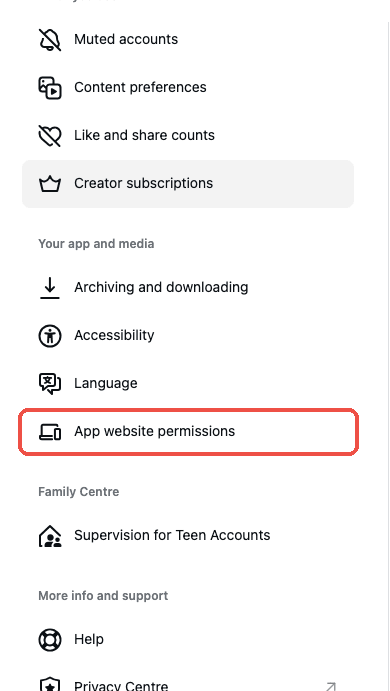
Click App website permissions.
3. Check the Active list Open the Active tab. You'll see every app connected to your account, such as SuperProfile or ManyChat.
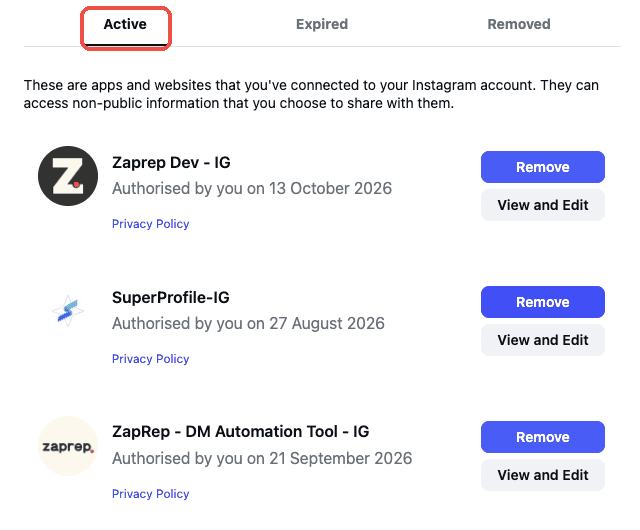
The Active tab lists every connected app.
4. Remove your previous tool Find your previous tool (for example SuperProfile or ManyChat) and click Remove. If Instagram asks you to confirm, click Remove again. Keep Zaprep connected.
Click Remove next to the tool you are leaving.
5. Confirm it's gone Open the Removed tab and check that your old tool is listed there with a removal date. You're all set for Part 2! ✔️
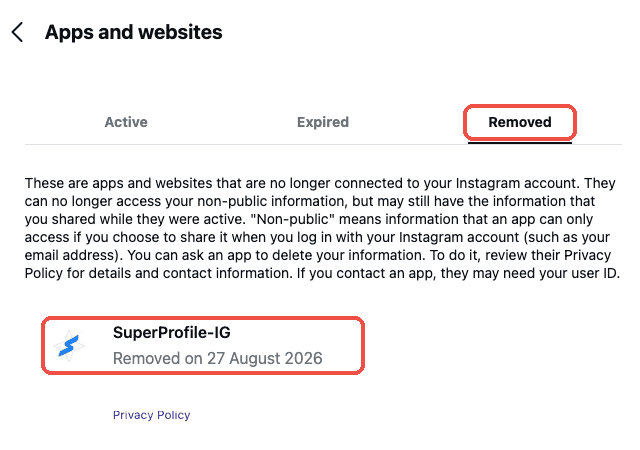
The Removed tab confirms your old tool is disconnected.
Part 2
Give Zaprep control of your Instagram & Messenger conversations (Meta Advanced Messaging) Your Instagram messages are managed through the Facebook Page linked to your account. This is where you let Meta know that Zaprep is your main automation tool.
1. Log in to Facebook on desktop Go to facebook.com and log in to the Facebook account that manages your Page. Click your profile picture (top right) → See all profiles and switch into the Business Page linked to your Instagram.
2. Open Settings & privacy Click your profile picture again and select Settings & privacy.
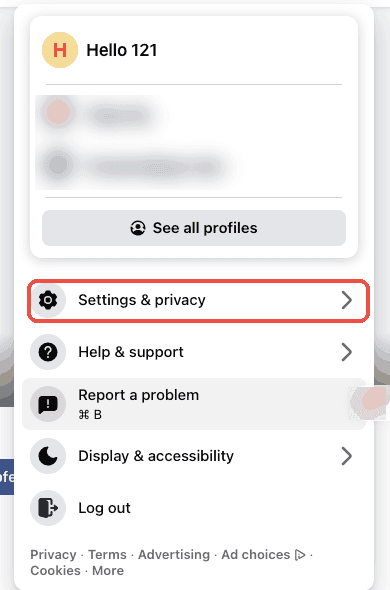
Click your profile picture, then Settings & privacy.
3. Click Settings In the menu that opens, choose Settings.
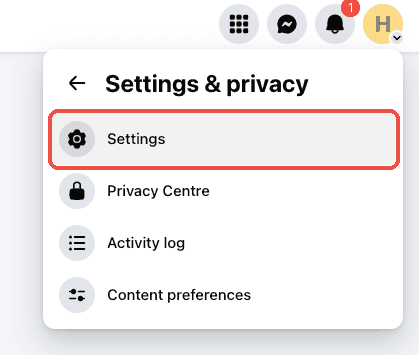
Select Settings.
4. Search for “advanced” and open Advanced messaging Type advanced in the Search settings box. Under Page setup, click Advanced messaging.
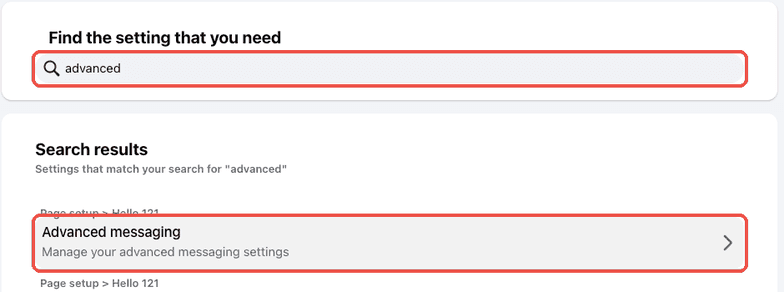
Search “advanced”, then click Advanced messaging.
5. Find Zaprep under Connected Apps Scroll down to Connected Apps. Find Zaprep in the list and click Edit next to it.
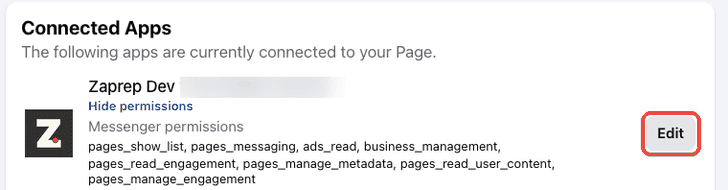
Click Edit next to Zaprep.
6. Turn on “Take control of conversations” In the Messenger permissions pop-up, switch Take control of conversations to ON. This lets Zaprep manage your chats smoothly. Keep Access standby channel ON as well, so Zaprep can see conversation events.
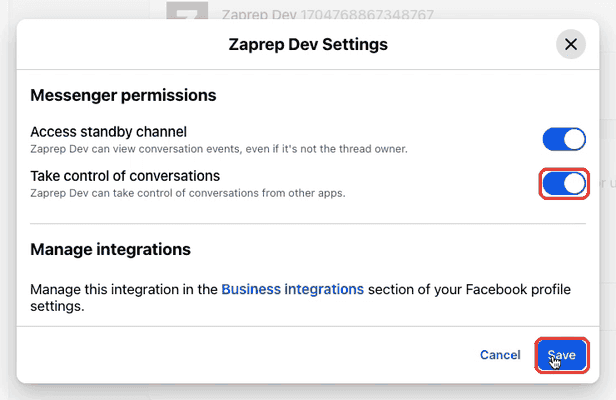
Before: “Take control of conversations” is OFF. Switch it on.
7. Click Save Both toggles should now be blue (ON). Click Save to confirm. 🎯
After: both toggles are ON. Click Save.
8. Refresh your Zaprep dashboard Open your Zaprep dashboard and refresh or reconnect your account so everything syncs. You're ready to go!
Your “All Set” checklist
- Previous tool removed from Instagram → Apps and Websites → Active
- Zaprep found under Connected Apps in Advanced messaging
- Take control of conversations turned ON and saved
- Zaprep dashboard refreshed
- Test comment or DM sent to see your first automation in action
Our commitment to you and your account
At Zaprep, your account's health comes first. That's why we:
- Follow Meta's platform guidelines in how our automations work
- Help you avoid restrictions and bans with a clean, compliant setup and safe-sending best practices
- Guide you step by step so your setup is clean from the start
- Encourage best practices so your conversations stay genuine and valuable
Simple habits for a healthy account
- 1. Keep one primary automation tool. One tool leading your conversations means one smooth experience for your audience.
- 2. Engage people who've interacted with you. Comments, story replies, mentions, and DMs are the best triggers.
- 3. Keep replies helpful and relevant. Personal, useful messages build trust and convert better.
- 4. Test your flow. Try your automation from a second account before you go live.
- 5. Review connected apps occasionally. A quick monthly check keeps your account tidy.
Frequently asked questions
Is Zaprep a good ManyChat alternative?
How do I switch from SuperProfile or ManyChat to Zaprep?
How do I avoid an Instagram account restriction or action block when using auto DM?
What is Zaprep?
Will I lose my followers or chats when I switch?
Do I need a Facebook Page to use Zaprep with Instagram?
Is it easy to switch from ManyChat or SuperProfile to Zaprep?
Will this help keep my account from getting restricted or banned?
What if I need help during setup?
Ready to automate?
Set up your first Instagram automation in minutes. Free plan, no card required.
Start for free →